Most people who use Excel every day know Ctrl + C and Ctrl + V, and do everything else with the mouse. That's fine, but it's slow. Each trip to the ribbon is a second or two, and it adds up across a working day.
You don't need to learn hundreds of shortcuts. About twenty cover most of what people do in a normal spreadsheet. Here they are, grouped the way we teach them in Excel Ninja, with notes on which ones pay off fastest.
All of these are for Excel on Windows, and most also work in Google Sheets. Excel for Mac uses ⌘ instead of Ctrl for most of them, but a few are different there (filters, for example), so check Excel's own shortcut list if you're on a Mac.
Group 1: Copy and paste
| Shortcut | What it does |
|---|---|
| Ctrl + C | Copy the selection |
| Ctrl + X | Cut (it moves when you paste) |
| Ctrl + V | Paste |
| Ctrl + Z | Undo. Press again to go further back |
| Ctrl + Y | Redo what you just undid |
You probably know the first three. The one to add is Ctrl + Y. When you undo one step too many, it brings it back instead of making you redo the work.
 In Excel Ninja, the shortcut works on the practice sheet. Here Ctrl + C puts the moving 'copied' border around the column.
Group 2: Formatting
| Shortcut | What it does |
|---|---|
| Ctrl + B / Ctrl + I / Ctrl + U | Bold / italic / underline (press again to turn off) |
| Ctrl + Shift + $ | Currency format: symbol, commas, two decimals |
| Ctrl + Shift + % | Percent format: 0.21 becomes 21% |
The two number formats are the hidden gems here. Formatting a column of money normally takes several clicks through the ribbon. With a shortcut it's one keystroke. The $ and % are the symbols above the 4 and 5 keys, so you're really pressing Ctrl + Shift + 4 and Ctrl + Shift + 5.
Group 3: Selecting and jumping
| Shortcut | What it does |
|---|---|
| Ctrl + A | Select the table around the cursor (press again for the whole sheet) |
| Shift + Space | Select the whole row |
| Ctrl + Space | Select the whole column |
| Ctrl + Home | Jump to cell A1 |
| Ctrl + End | Jump to the last cell with data |
If you learn one group, make it this one. Dragging to select a big range is where the mouse is slowest and most error-prone: you overshoot, the sheet scrolls too fast, you start again. Ctrl + Space and Shift + Space select a whole column or row in one move. Ctrl + End tells you instantly how big a sheet really is, which is useful when you've been sent a file you don't know.
Group 4: Find and tools
| Shortcut | What it does |
|---|---|
| Ctrl + F | Find |
| Ctrl + H | Find & Replace |
| Ctrl + Shift + L | Turn filter buttons on the header row on or off |
| Ctrl + 1 | Format Cells: every number, border and font option |
| Ctrl + S | Save |
| Ctrl + P |
Ctrl + Shift + L is the biggest time-saver in this group. Filters are one of Excel's most useful features, and this turns them on without hunting through the Data tab. Ctrl + 1 is a close second: it opens the full formatting box for whatever you've selected.
Why reading a list doesn't work
If you've read this far, you now "know" twenty-one shortcuts. By tomorrow you'll remember three. That isn't a memory problem, it's how memory works. Reading something is weak practice. Having to recall it is strong practice. Psychologists call this the testing effect, and it's one of the most reliable findings in learning research.
So the way to learn shortcuts is to be asked for them, a little after you've seen them. That's how Excel Ninja's lessons work:
- A new shortcut is shown with its keys: "New shortcut: Ctrl + C".
- The next one is shown.
- Then you're asked for the first one again, without the keys ("From memory").
- If you needed the hint, it comes back once more at the end.
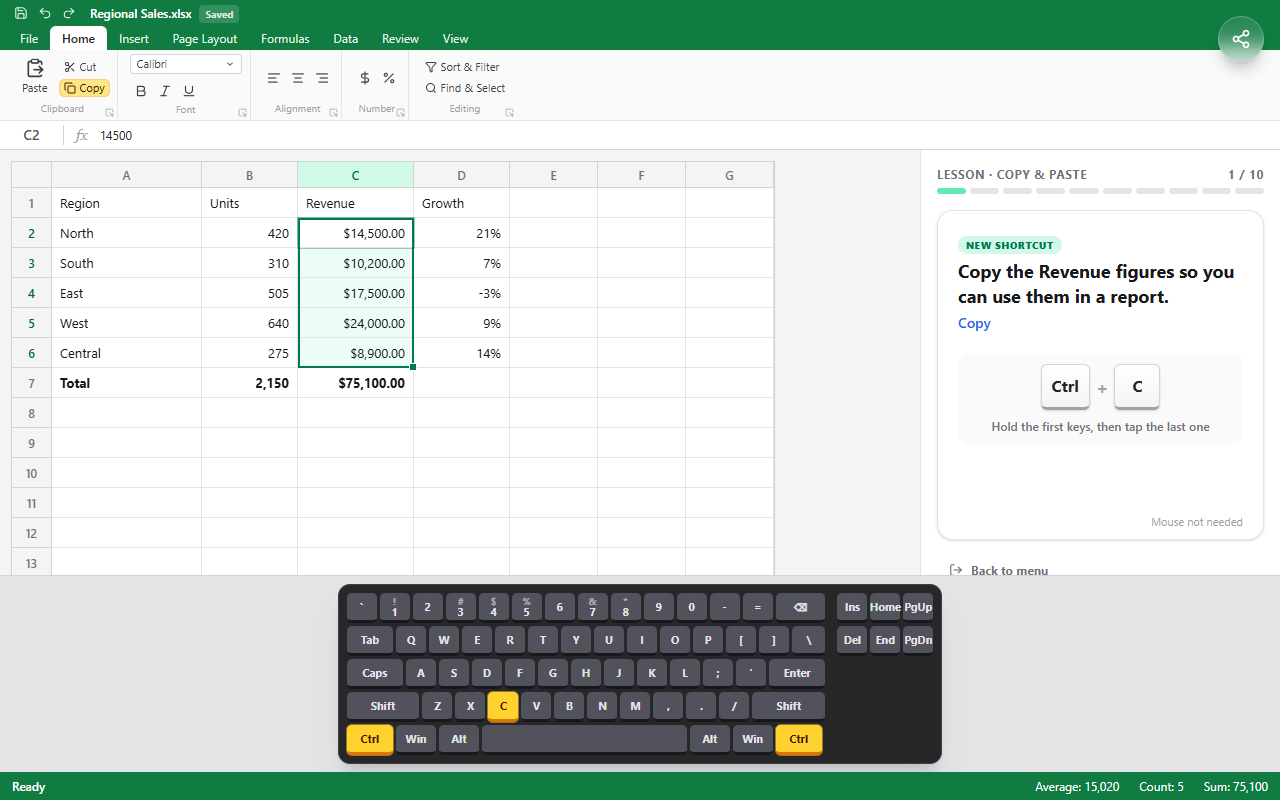 A lesson in progress: the task on the right, the keys to press shown for a new shortcut, and an on-screen keyboard that lights up as you press.
If you press the wrong combination, the game tells you what it does in Excel instead of just saying "wrong", so even mistakes teach you something.
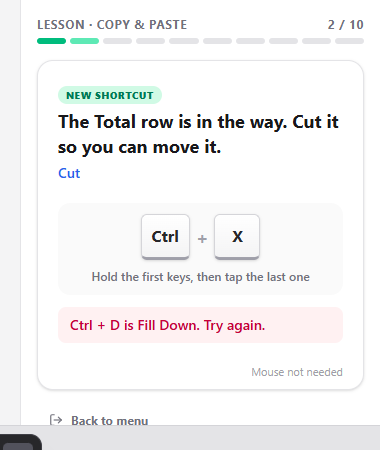 Pressed the wrong keys? You learn what they do. Ctrl + D is Fill Down, also worth knowing.
At the end of a lesson you get up to three stars, depending on how many shortcuts you recalled without seeing the keys.
 Lesson done: five recalled from memory, one wrong key along the way. Next up is the Formatting lesson.
When you've done a lesson, the 60-second sprint asks for shortcuts as fast as you can press them. Faster answers and streaks score more, and needing the keys scores a little.
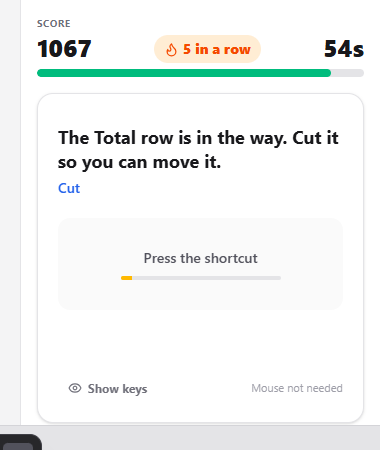 The sprint: 60 seconds, with points for speed and a streak bonus.
A plan for this week
- Day 1: the Select & Jump group. It saves the most time.
- Day 2: the two number formats and Ctrl + Shift + L.
- Every day after: make yourself use one new shortcut at work, even when the mouse is right there. It feels slower for a day or two, then it's faster forever.
Or take the shortcut: do one Excel Ninja lesson a day for four days. Each takes a few minutes. You'll need a physical keyboard.